How to Compress Listing Photos Without Losing Quality (So MLS, Property Finder, and Bayut Stop Rejecting Them)
Modern phones shoot photos far bigger than almost anything actually needs. A single shot from a recent iPhone or Android flagship can easily land between 8MB and 25MB — and most listing portals, MLS systems, and even email attachments have a cap well under that. The usual result is either a flat-out rejected upload, or the portal quietly compressing the photo for you on its own terms, which tends to look worse than compressing it properly yourself beforehand. Here's what's actually happening, and the fix.
Key takeaways
- A phone photo at 8–25MB is usually far bigger than any portal needs it to be — most of that size carries no visible benefit
- Compressing is not the same as resizing: compressing shrinks file size at the same pixel dimensions, resizing changes the dimensions themselves
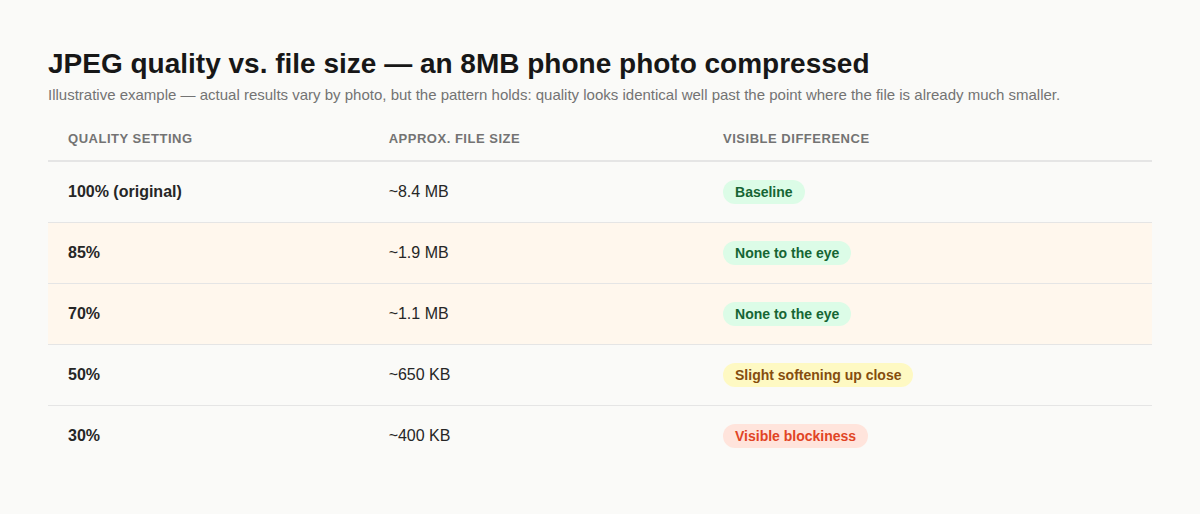
- JPEG quality around 70–85% is typically indistinguishable from the original to the eye while cutting file size by 70–85%
- Letting a portal auto-compress an oversized upload gives you no control over the result — doing it yourself first does
- A browser-based compressor can do this in seconds without uploading the photo anywhere or touching its pixel dimensions
Why an oversized photo is a real problem, not just a slow upload
An upload that's too large doesn't just take longer — it often gets rejected outright, or the portal applies its own compression pass to force it under the limit. That second outcome is the one worth caring about: you lose control over how the compression is done, and automated server-side compression tends to prioritize speed over quality, sometimes producing visible blockiness or banding in a photo that would have looked fine if compressed properly beforehand. Shrinking the file yourself, before upload, means you're the one deciding how much quality to trade for how much size — not an automated pipeline you can't see into.
Resizing and compressing are not the same thing
These two get mixed up constantly, and they solve different problems. Resizing changes a photo's pixel dimensions — a 4000×3000 photo becomes, say, 1600×1200 — which also shrinks the file, but at the cost of actual resolution. Compressing keeps the exact same pixel dimensions and instead reduces how much data is used to store each pixel, mainly by discarding fine detail a human eye won't notice at normal viewing size. If a portal has a pixel-dimension requirement as well as a file-size cap, you may need both; if it's only the file size causing problems, compressing alone gets there without shrinking the image itself. Our free photo resizer handles the dimension side if you need that too.
What quality setting actually holds up
JPEG compression has a quality setting, usually shown as a percentage or a 0–100 scale, and the relationship between that setting and visible quality loss isn't linear. Dropping from 100% to around 85% barely registers to the eye while already cutting the file size substantially — most of the earliest savings come essentially free. It's only once you push well below that, into the 30–50% range, that compression artifacts like blockiness around edges and banding in smooth gradients (like a sky) start becoming visible. The practical range for listing photos is 70–85%: small enough to matter, large enough that nobody looking at the photo would ever notice.
A free way to compress a batch without touching dimensions
You don't need Photoshop or a paid app for this — it's a single, well-defined operation any browser can do locally. Our free image compressor re-encodes a JPG, PNG, or WebP photo at a lower quality setting entirely in your browser — the photo is never uploaded anywhere — and leaves the pixel dimensions untouched, so it won't fight with any separate resizing you've already done. Drop in a photo, pick a quality level, and get back a file that's a fraction of the size with no visible difference.
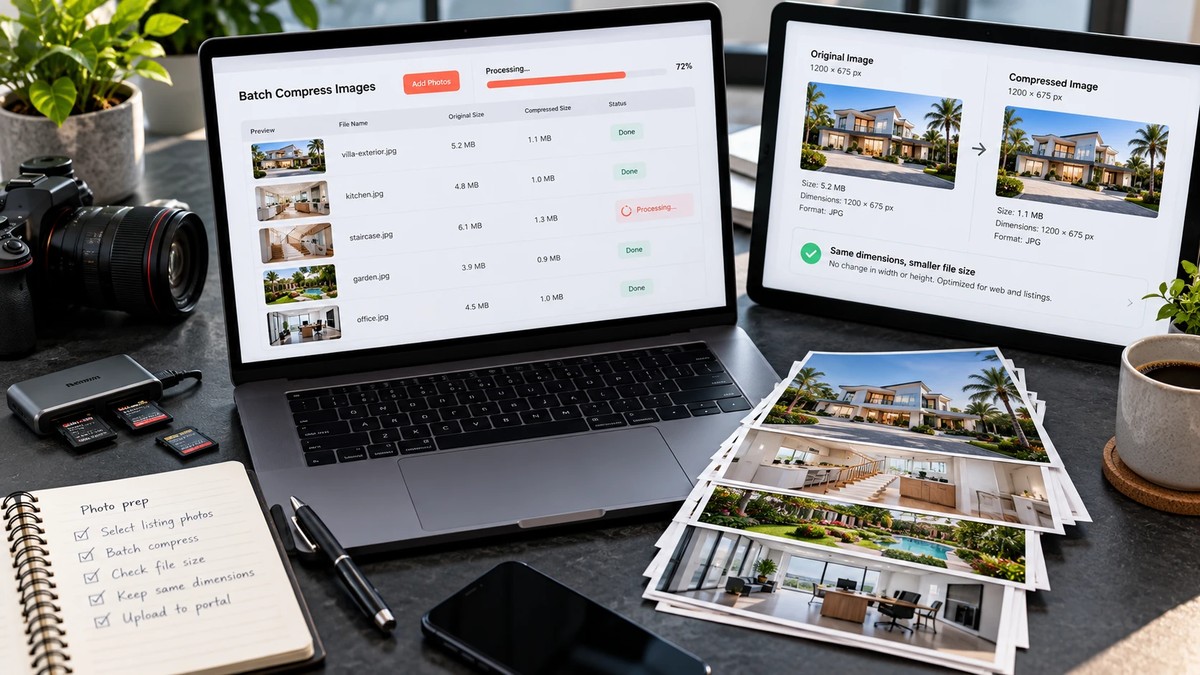
If you're preparing a full set of listing photos at once, this pairs naturally with the other free tools: resize first if dimensions matter, compress to hit a file-size cap, and if you need to hand the finished set to a client as a single file, our JPG to PDF converter can merge them afterward.
Does compressing a photo actually lower its quality?
Technically yes — it's a lossy process — but at 70–85% quality the loss is invisible at normal viewing size. The visible drop-off only shows up well below that range, typically under 50%.
What's the difference between resizing and compressing a photo?
Resizing changes the pixel dimensions (e.g. 4000×3000 to 1600×1200); compressing keeps the same dimensions and reduces the file size by discarding data the eye won't notice. They solve different problems and can be used together.
What file size should my listing photos be?
There's no single universal number — it depends on the specific portal or MLS, and most don't publish an exact file-size limit publicly. As a practical target, compressing to roughly 1–2MB per photo at 70–85% JPEG quality comfortably clears most upload caps without any visible quality loss.
Will this tool also resize my photo's dimensions?
No — the image compressor only changes file size through quality re-encoding. The pixel dimensions stay exactly the same. Use the free photo resizer if you need to change dimensions too.
Try the free image compressor — no upload, no account, full control over the quality setting.
Related reading


Try LiftMyPhotos on your next listing
3 free enhancements on signup. No credit card required.